Overclocking for Beginners
A beginner-friendly introduction to CPU and RAM overclocking: the risks, the tools, and the step-by-step process, covering Intel PL1/PL2 power limits, AMD Precision Boost Overdrive, memory tuning and stability testing.
Read page 1 as text
JNR BUILDS
Overclocking for Beginners
A Practical, Step-by-Step Introduction to Squeezing Free Performance from Your
CPU and RAM
CONTENTS
1. What Overclocking Is and What It Isn't
2. Is My CPU Unlocked for Overclocking?
3. Tools You Need Before Starting
4. RAM Overclocking — XMP and Beyond
5. CPU Overclocking on AMD — PBO and BIOS Curves
6. CPU Overclocking on Intel — Power Limits and Frequencies
7. Stability Testing — How to Know It's Safe
8. When Overclocking Isn't Worth It
© 2026 JNR Builds • jnrbuilds.com • Free guide, may not be resold.
jnrbuilds.com 1
Read page 2 as text
CHAPTER 1
What Overclocking Is and What It Isn't
Overclocking means running your hardware at speeds higher than the manufacturer's specified
defaults. For CPUs, this means higher clock frequencies than the rated base or boost speed. For
RAM, it means higher data transfer rates than the JEDEC standard the module defaults to. Both
types of overclocking extract performance from hardware you already own without spending money
on replacements.
What overclocking is not: magic. The performance gains are real but bounded by the physics of the
silicon. A processor that achieves a 10 percent clock speed increase does not necessarily deliver 10
percent more gaming performance — the relationship between clock speed and frame rate is not
linear and depends heavily on whether the game is CPU-limited or GPU-limited. RAM overclocking
provides more consistent and meaningful frame rate improvements than CPU overclocking in many
modern games.
The risks are real and should be understood before proceeding. Higher clock speeds require higher
voltages, and higher voltages generate more heat and can, over time, accelerate the degradation of
transistors in the processor. Overclocking under properly controlled thermal conditions with modest
voltage increases reduces this risk substantially but does not eliminate it entirely. Modern processors
also have robust protection systems that throttle or shut down before permanent damage occurs.
The practical risk profile in 2026 is manageable. Modern AM5 processors have multiple protection
layers that prevent permanent damage from typical overclocking scenarios — the processor will
crash and reboot before sustaining damage from temporary thermal excursions. Intel's current
generation similarly has strong protection. The scenarios that cause actual hardware damage
typically involve extended operation at very high voltages in a poorly cooled system — conditions
that also produce obvious warning signs.
Who should overclock: builders who already have a stable, well-cooled system and want to extract
additional performance without spending money. Builders whose games show CPU bottlenecking
(GPU usage consistently below 90 percent in a demanding title while CPU usage is near 100
percent). Anyone with DDR5 RAM who has not yet enabled XMP in the BIOS — this is not
technically overclocking but is mandatory first step and the single best free performance
improvement available.
jnrbuilds.com 2
Read page 3 as text
Who should not overclock: builders with inadequate cooling, those whose systems are already
thermally constrained, and those who are not comfortable with the possibility of needing to restore
BIOS defaults when a setting causes instability. Overclocking also complicates warranty claims —
most CPU manufacturers void the warranty for damage caused by overclocking. Keep that context in
mind when deciding how aggressively to push settings.
jnrbuilds.com 3
Read page 4 as text
CHAPTER 2
Is My CPU Unlocked for Overclocking?
Not all CPUs can be overclocked to the same degree. Manufacturers deliberately segment their
product lines, with fully unlocked multipliers reserved for enthusiast-tier processors sold at a
premium. Understanding whether and how your specific CPU can be overclocked determines which
techniques in this guide are available to you.
AMD processors: AMD unlocks multiplier-based overclocking on all Ryzen processors, including
budget models. You can manually set higher multipliers and voltages on any AM5 Ryzen chip.
Additionally, AMD provides Precision Boost Overdrive (PBO) and Curve Optimizer — an automatic
overclocking framework that works within AMD's own algorithms to maximise boost clocks safely.
PBO is available on all Ryzen processors and is the recommended starting point for AMD
overclocking.
Intel processors: Intel segments its lineup by appending a 'K' to the model number for unlocked
processors. A Core i9-14900K is overclockable via multiplier adjustment. A Core i9-14900 (without K)
has a locked multiplier. Intel also offers 'KF' variants (unlocked, no integrated graphics) and 'KS'
variants (unlocked, factory-overclocked to higher frequencies). If your Intel processor does not have
a K suffix, traditional multiplier overclocking is not available.
Intel non-K processors can still benefit from power limit adjustments. Intel's P-cores have rated TDPs
(PL1) and short-duration boost power limits (PL2). Many motherboards ship with PL2 artificially
restricted below what the processor can actually sustain. Adjusting PL1 and PL2 upward allows the
processor to maintain its maximum boost frequency for longer durations — not true overclocking, but
often misidentified as such, and frequently effective at improving sustained performance.
Motherboard compatibility: overclocking also requires a compatible motherboard chipset. On AMD
AM5 platforms, B650 and X670 chipsets support multiplier overclocking. A350 chipsets do not
support CPU overclocking (though RAM XMP is still available). On Intel platforms, Z-series chipsets
(Z790, Z890) are required for K-series processor overclocking. B-series and H-series Intel chipsets
do not support multiplier adjustment even with K processors.
Identifying your processor: if you are unsure of your processor model, open Task Manager in
Windows, click the Performance tab, select CPU, and your processor model name is displayed in the
top right. Cross-reference the model name with AMD's or Intel's specification sheets to confirm
whether overclocking is supported. CPU-Z also displays full processor details including stepping and
revision, which can be useful for identifying which BIOS curve settings are optimal for your specific
silicon.
jnrbuilds.com 4
Read page 5 as text
CHAPTER 3
Tools You Need Before Starting
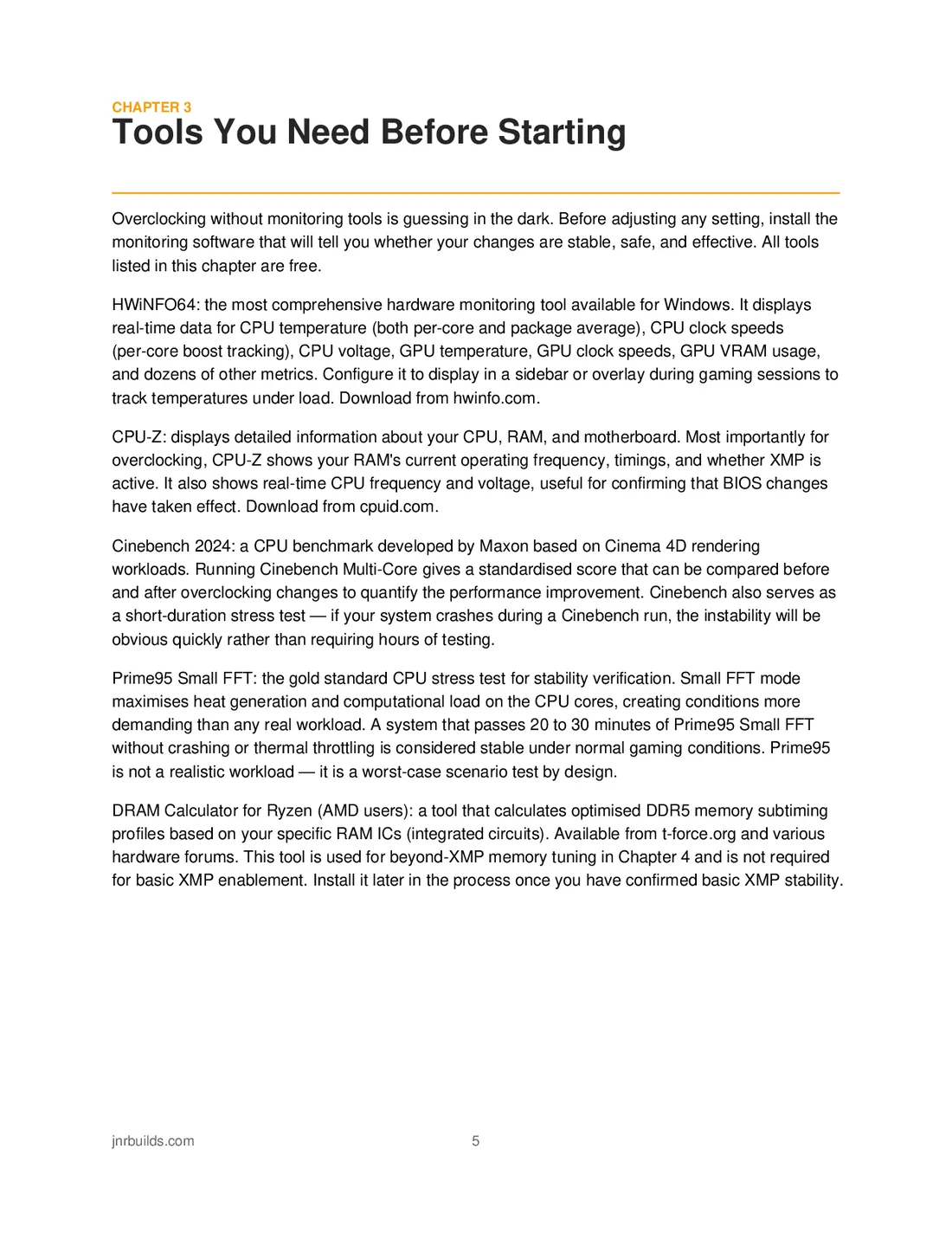
Overclocking without monitoring tools is guessing in the dark. Before adjusting any setting, install the
monitoring software that will tell you whether your changes are stable, safe, and effective. All tools
listed in this chapter are free.
HWiNFO64: the most comprehensive hardware monitoring tool available for Windows. It displays
real-time data for CPU temperature (both per-core and package average), CPU clock speeds
(per-core boost tracking), CPU voltage, GPU temperature, GPU clock speeds, GPU VRAM usage,
and dozens of other metrics. Configure it to display in a sidebar or overlay during gaming sessions to
track temperatures under load. Download from hwinfo.com.
CPU-Z: displays detailed information about your CPU, RAM, and motherboard. Most importantly for
overclocking, CPU-Z shows your RAM's current operating frequency, timings, and whether XMP is
active. It also shows real-time CPU frequency and voltage, useful for confirming that BIOS changes
have taken effect. Download from cpuid.com.
Cinebench 2024: a CPU benchmark developed by Maxon based on Cinema 4D rendering
workloads. Running Cinebench Multi-Core gives a standardised score that can be compared before
and after overclocking changes to quantify the performance improvement. Cinebench also serves as
a short-duration stress test — if your system crashes during a Cinebench run, the instability will be
obvious quickly rather than requiring hours of testing.
Prime95 Small FFT: the gold standard CPU stress test for stability verification. Small FFT mode
maximises heat generation and computational load on the CPU cores, creating conditions more
demanding than any real workload. A system that passes 20 to 30 minutes of Prime95 Small FFT
without crashing or thermal throttling is considered stable under normal gaming conditions. Prime95
is not a realistic workload — it is a worst-case scenario test by design.
DRAM Calculator for Ryzen (AMD users): a tool that calculates optimised DDR5 memory subtiming
profiles based on your specific RAM ICs (integrated circuits). Available from t-force.org and various
hardware forums. This tool is used for beyond-XMP memory tuning in Chapter 4 and is not required
for basic XMP enablement. Install it later in the process once you have confirmed basic XMP stability.
jnrbuilds.com 5
Read page 6 as text
CHAPTER 4
RAM Overclocking — XMP and Beyond
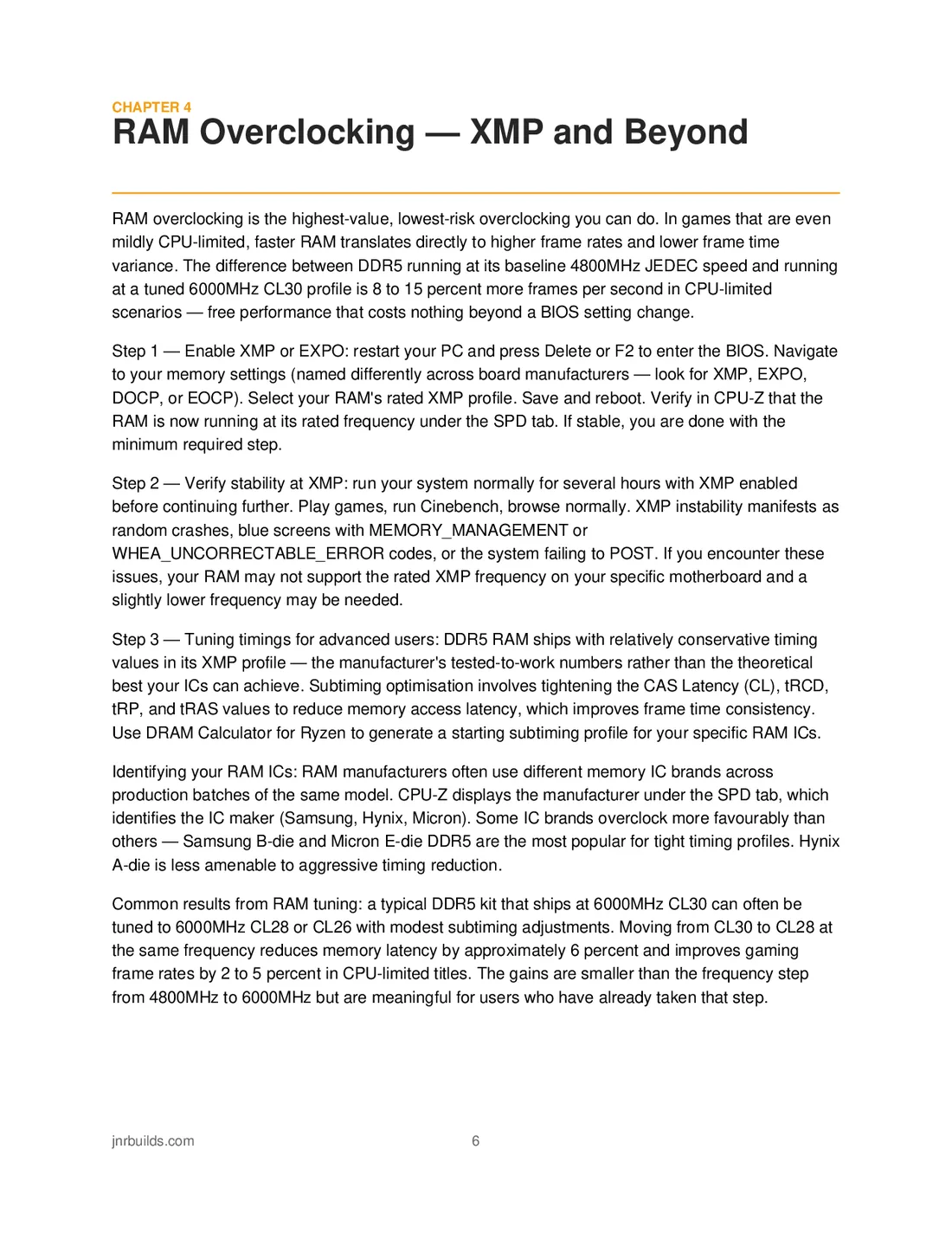
RAM overclocking is the highest-value, lowest-risk overclocking you can do. In games that are even
mildly CPU-limited, faster RAM translates directly to higher frame rates and lower frame time
variance. The difference between DDR5 running at its baseline 4800MHz JEDEC speed and running
at a tuned 6000MHz CL30 profile is 8 to 15 percent more frames per second in CPU-limited
scenarios — free performance that costs nothing beyond a BIOS setting change.
Step 1 — Enable XMP or EXPO: restart your PC and press Delete or F2 to enter the BIOS. Navigate
to your memory settings (named differently across board manufacturers — look for XMP, EXPO,
DOCP, or EOCP). Select your RAM's rated XMP profile. Save and reboot. Verify in CPU-Z that the
RAM is now running at its rated frequency under the SPD tab. If stable, you are done with the
minimum required step.
Step 2 — Verify stability at XMP: run your system normally for several hours with XMP enabled
before continuing further. Play games, run Cinebench, browse normally. XMP instability manifests as
random crashes, blue screens with MEMORY_MANAGEMENT or
WHEA_UNCORRECTABLE_ERROR codes, or the system failing to POST. If you encounter these
issues, your RAM may not support the rated XMP frequency on your specific motherboard and a
slightly lower frequency may be needed.
Step 3 — Tuning timings for advanced users: DDR5 RAM ships with relatively conservative timing
values in its XMP profile — the manufacturer's tested-to-work numbers rather than the theoretical
best your ICs can achieve. Subtiming optimisation involves tightening the CAS Latency (CL), tRCD,
tRP, and tRAS values to reduce memory access latency, which improves frame time consistency.
Use DRAM Calculator for Ryzen to generate a starting subtiming profile for your specific RAM ICs.
Identifying your RAM ICs: RAM manufacturers often use different memory IC brands across
production batches of the same model. CPU-Z displays the manufacturer under the SPD tab, which
identifies the IC maker (Samsung, Hynix, Micron). Some IC brands overclock more favourably than
others — Samsung B-die and Micron E-die DDR5 are the most popular for tight timing profiles. Hynix
A-die is less amenable to aggressive timing reduction.
Common results from RAM tuning: a typical DDR5 kit that ships at 6000MHz CL30 can often be
tuned to 6000MHz CL28 or CL26 with modest subtiming adjustments. Moving from CL30 to CL28 at
the same frequency reduces memory latency by approximately 6 percent and improves gaming
frame rates by 2 to 5 percent in CPU-limited titles. The gains are smaller than the frequency step
from 4800MHz to 6000MHz but are meaningful for users who have already taken that step.
jnrbuilds.com 6
Read page 7 as text
CHAPTER 5
CPU Overclocking on AMD — PBO and BIOS
Curves
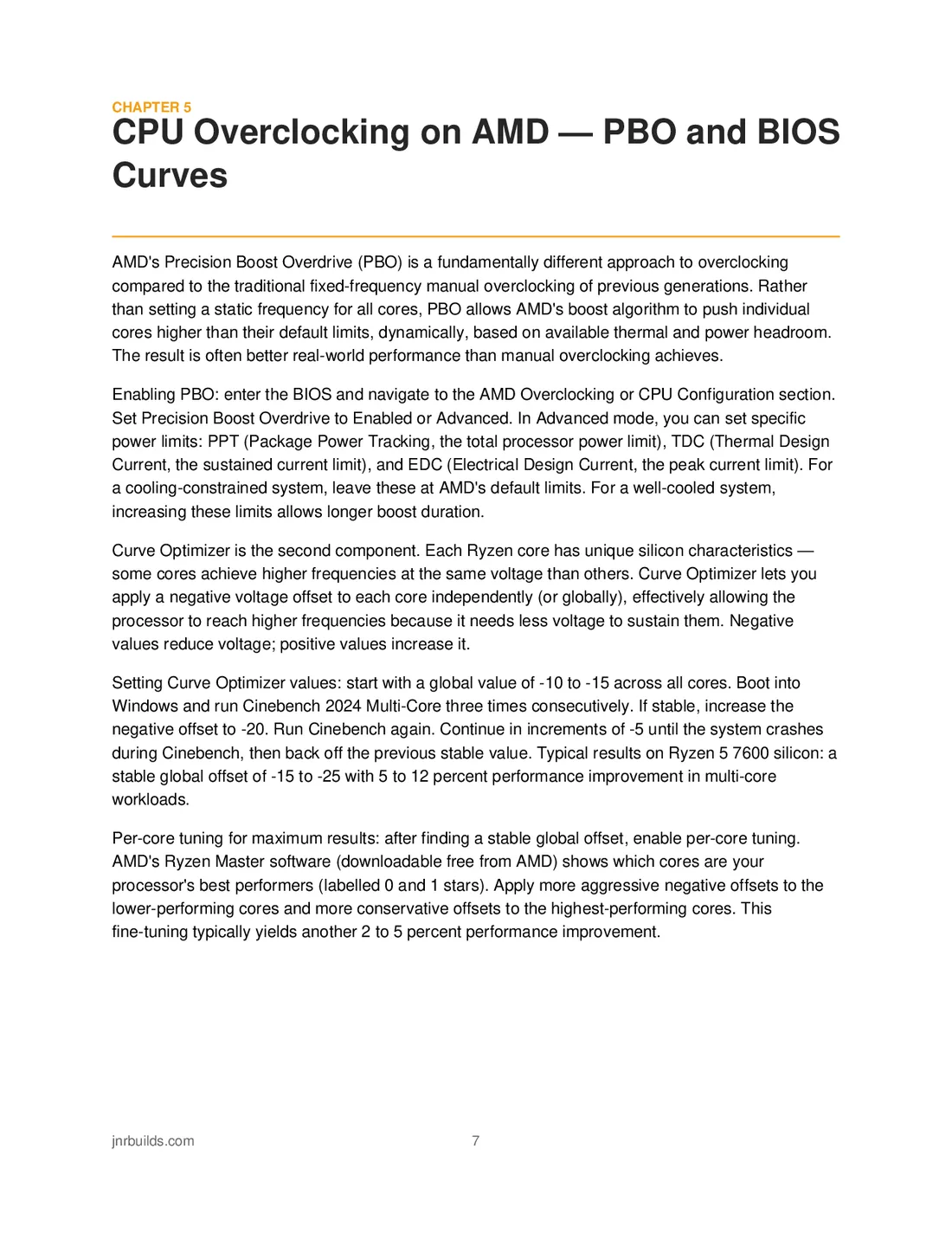
AMD's Precision Boost Overdrive (PBO) is a fundamentally different approach to overclocking
compared to the traditional fixed-frequency manual overclocking of previous generations. Rather
than setting a static frequency for all cores, PBO allows AMD's boost algorithm to push individual
cores higher than their default limits, dynamically, based on available thermal and power headroom.
The result is often better real-world performance than manual overclocking achieves.
Enabling PBO: enter the BIOS and navigate to the AMD Overclocking or CPU Configuration section.
Set Precision Boost Overdrive to Enabled or Advanced. In Advanced mode, you can set specific
power limits: PPT (Package Power Tracking, the total processor power limit), TDC (Thermal Design
Current, the sustained current limit), and EDC (Electrical Design Current, the peak current limit). For
a cooling-constrained system, leave these at AMD's default limits. For a well-cooled system,
increasing these limits allows longer boost duration.
Curve Optimizer is the second component. Each Ryzen core has unique silicon characteristics —
some cores achieve higher frequencies at the same voltage than others. Curve Optimizer lets you
apply a negative voltage offset to each core independently (or globally), effectively allowing the
processor to reach higher frequencies because it needs less voltage to sustain them. Negative
values reduce voltage; positive values increase it.
Setting Curve Optimizer values: start with a global value of -10 to -15 across all cores. Boot into
Windows and run Cinebench 2024 Multi-Core three times consecutively. If stable, increase the
negative offset to -20. Run Cinebench again. Continue in increments of -5 until the system crashes
during Cinebench, then back off the previous stable value. Typical results on Ryzen 5 7600 silicon: a
stable global offset of -15 to -25 with 5 to 12 percent performance improvement in multi-core
workloads.
Per-core tuning for maximum results: after finding a stable global offset, enable per-core tuning.
AMD's Ryzen Master software (downloadable free from AMD) shows which cores are your
processor's best performers (labelled 0 and 1 stars). Apply more aggressive negative offsets to the
lower-performing cores and more conservative offsets to the highest-performing cores. This
fine-tuning typically yields another 2 to 5 percent performance improvement.
jnrbuilds.com 7
Read page 8 as text
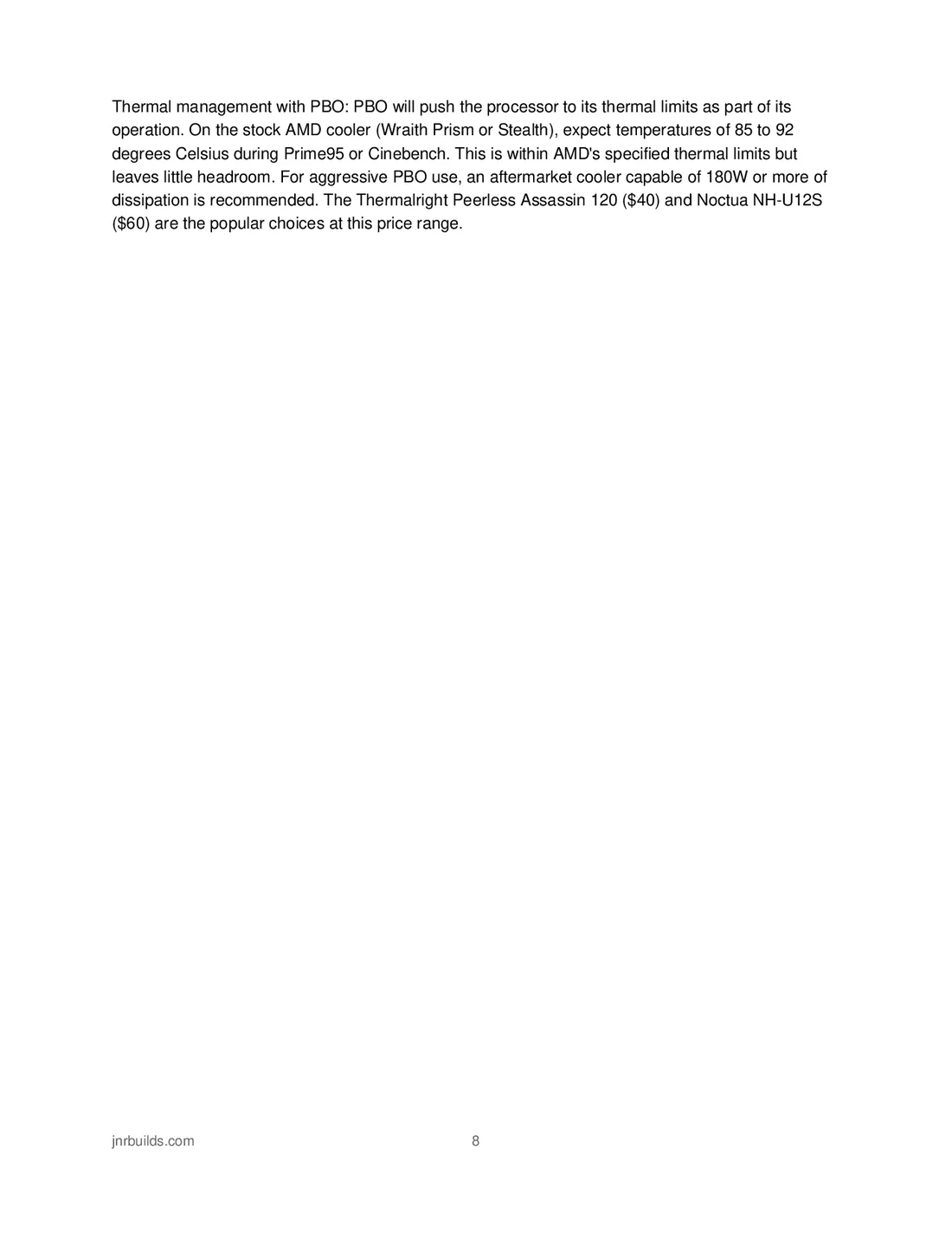
Thermal management with PBO: PBO will push the processor to its thermal limits as part of its
operation. On the stock AMD cooler (Wraith Prism or Stealth), expect temperatures of 85 to 92
degrees Celsius during Prime95 or Cinebench. This is within AMD's specified thermal limits but
leaves little headroom. For aggressive PBO use, an aftermarket cooler capable of 180W or more of
dissipation is recommended. The Thermalright Peerless Assassin 120 ($40) and Noctua NH-U12S
($60) are the popular choices at this price range.
jnrbuilds.com 8
Read page 9 as text
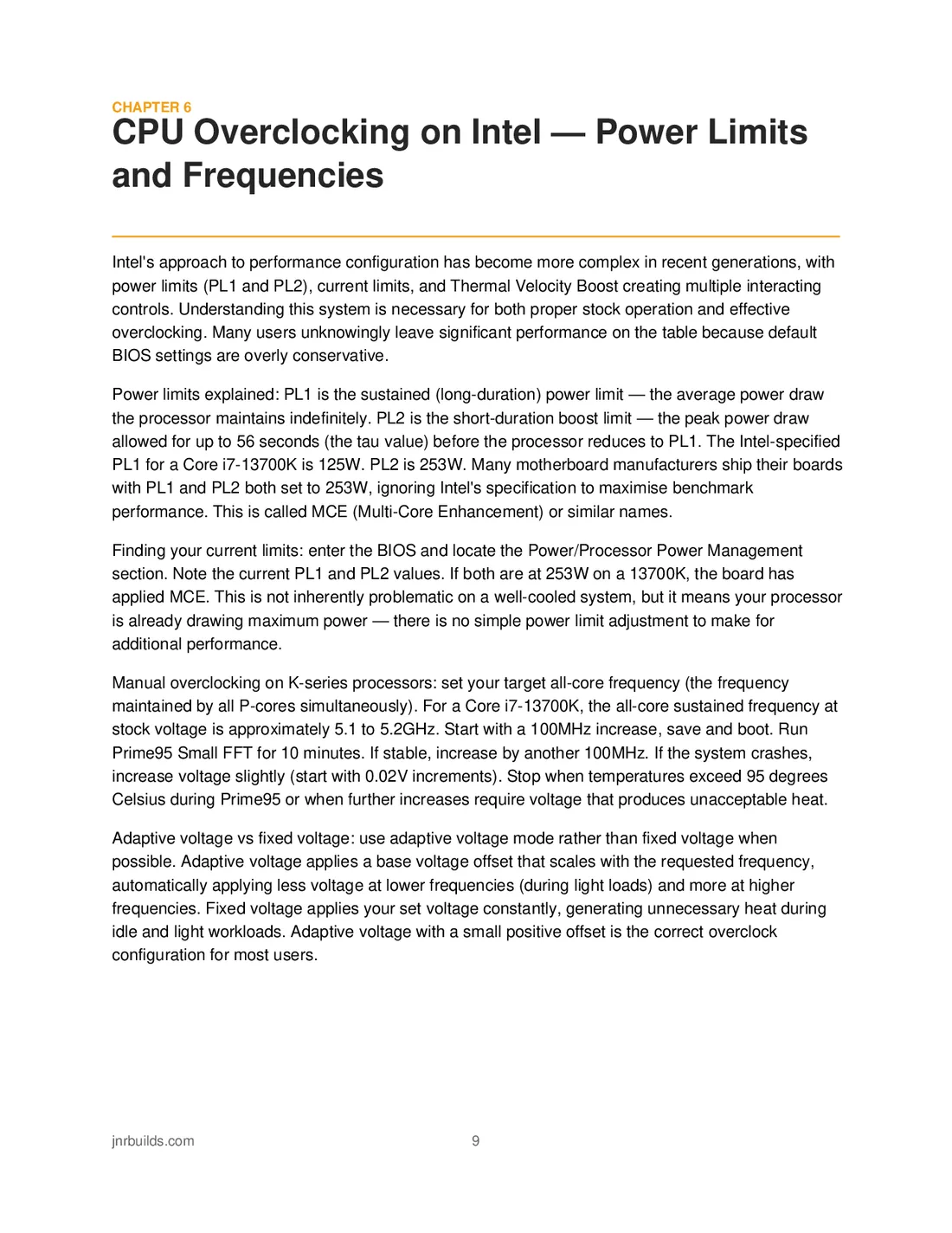
CHAPTER 6
CPU Overclocking on Intel — Power Limits
and Frequencies
Intel's approach to performance configuration has become more complex in recent generations, with
power limits (PL1 and PL2), current limits, and Thermal Velocity Boost creating multiple interacting
controls. Understanding this system is necessary for both proper stock operation and effective
overclocking. Many users unknowingly leave significant performance on the table because default
BIOS settings are overly conservative.
Power limits explained: PL1 is the sustained (long-duration) power limit — the average power draw
the processor maintains indefinitely. PL2 is the short-duration boost limit — the peak power draw
allowed for up to 56 seconds (the tau value) before the processor reduces to PL1. The Intel-specified
PL1 for a Core i7-13700K is 125W. PL2 is 253W. Many motherboard manufacturers ship their boards
with PL1 and PL2 both set to 253W, ignoring Intel's specification to maximise benchmark
performance. This is called MCE (Multi-Core Enhancement) or similar names.
Finding your current limits: enter the BIOS and locate the Power/Processor Power Management
section. Note the current PL1 and PL2 values. If both are at 253W on a 13700K, the board has
applied MCE. This is not inherently problematic on a well-cooled system, but it means your processor
is already drawing maximum power — there is no simple power limit adjustment to make for
additional performance.
Manual overclocking on K-series processors: set your target all-core frequency (the frequency
maintained by all P-cores simultaneously). For a Core i7-13700K, the all-core sustained frequency at
stock voltage is approximately 5.1 to 5.2GHz. Start with a 100MHz increase, save and boot. Run
Prime95 Small FFT for 10 minutes. If stable, increase by another 100MHz. If the system crashes,
increase voltage slightly (start with 0.02V increments). Stop when temperatures exceed 95 degrees
Celsius during Prime95 or when further increases require voltage that produces unacceptable heat.
Adaptive voltage vs fixed voltage: use adaptive voltage mode rather than fixed voltage when
possible. Adaptive voltage applies a base voltage offset that scales with the requested frequency,
automatically applying less voltage at lower frequencies (during light loads) and more at higher
frequencies. Fixed voltage applies your set voltage constantly, generating unnecessary heat during
idle and light workloads. Adaptive voltage with a small positive offset is the correct overclock
configuration for most users.
jnrbuilds.com 9
Read page 10 as text
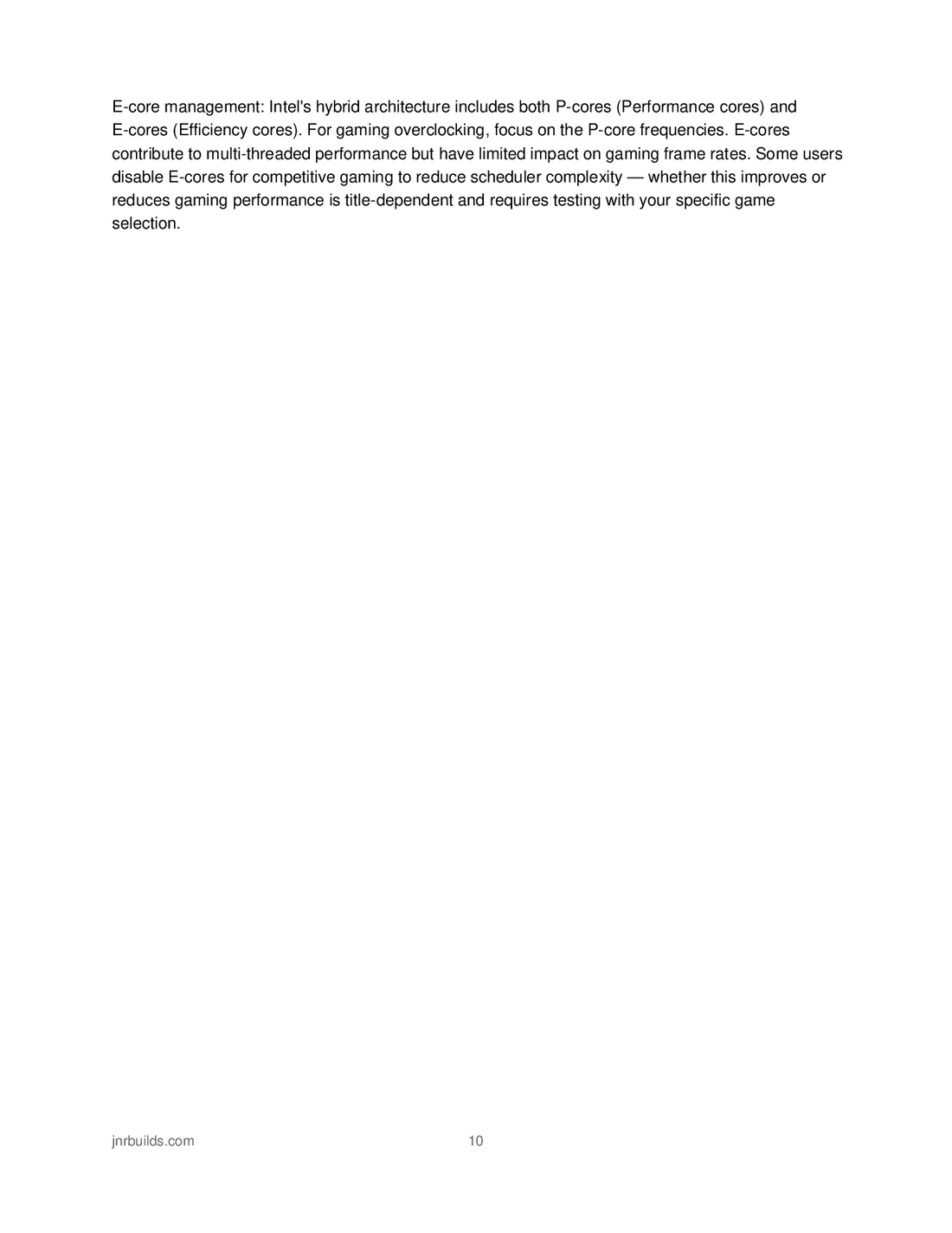
E-core management: Intel's hybrid architecture includes both P-cores (Performance cores) and
E-cores (Efficiency cores). For gaming overclocking, focus on the P-core frequencies. E-cores
contribute to multi-threaded performance but have limited impact on gaming frame rates. Some users
disable E-cores for competitive gaming to reduce scheduler complexity — whether this improves or
reduces gaming performance is title-dependent and requires testing with your specific game
selection.
jnrbuilds.com 10
Read page 11 as text
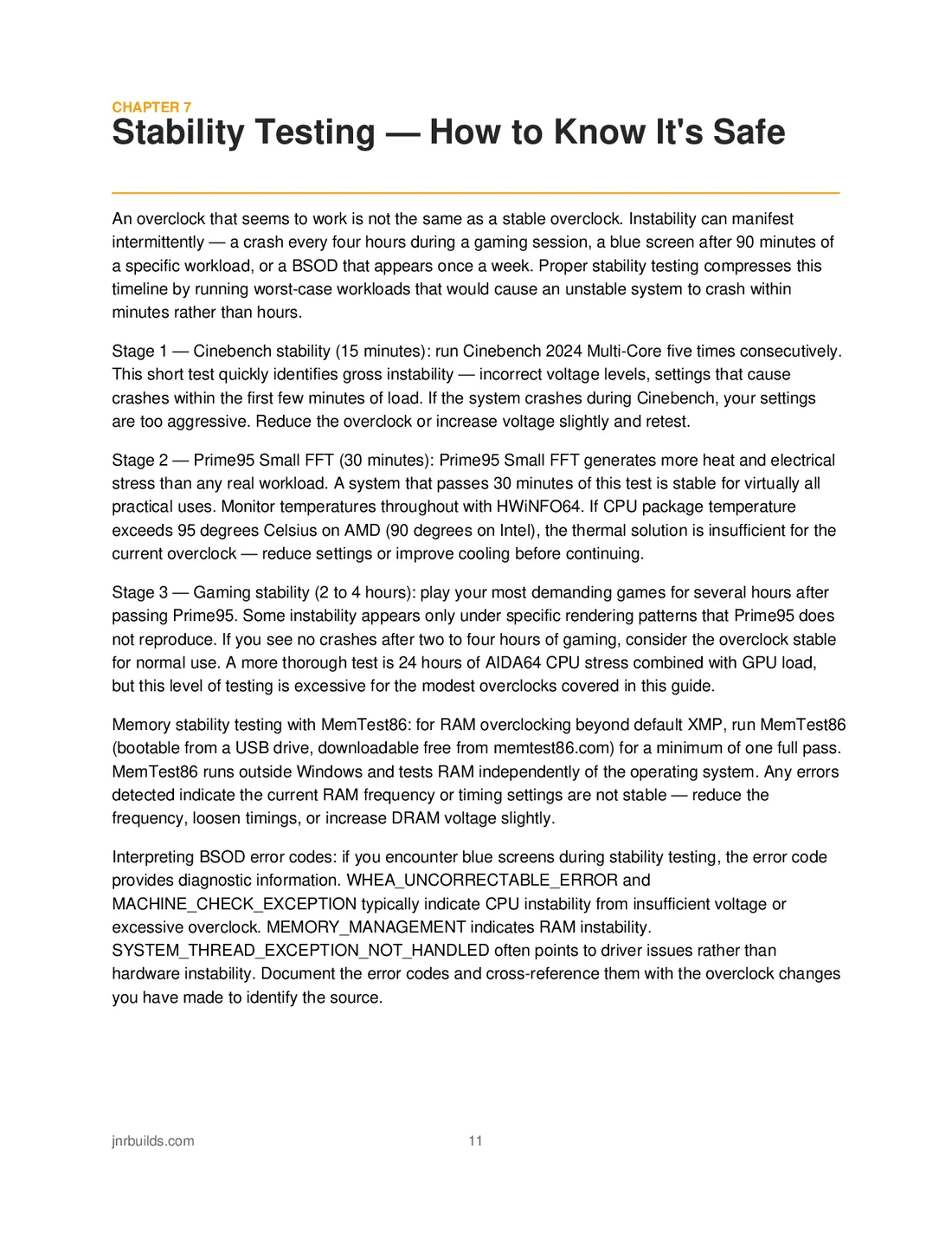
CHAPTER 7
Stability Testing — How to Know It's Safe
An overclock that seems to work is not the same as a stable overclock. Instability can manifest
intermittently — a crash every four hours during a gaming session, a blue screen after 90 minutes of
a specific workload, or a BSOD that appears once a week. Proper stability testing compresses this
timeline by running worst-case workloads that would cause an unstable system to crash within
minutes rather than hours.
Stage 1 — Cinebench stability (15 minutes): run Cinebench 2024 Multi-Core five times consecutively.
This short test quickly identifies gross instability — incorrect voltage levels, settings that cause
crashes within the first few minutes of load. If the system crashes during Cinebench, your settings
are too aggressive. Reduce the overclock or increase voltage slightly and retest.
Stage 2 — Prime95 Small FFT (30 minutes): Prime95 Small FFT generates more heat and electrical
stress than any real workload. A system that passes 30 minutes of this test is stable for virtually all
practical uses. Monitor temperatures throughout with HWiNFO64. If CPU package temperature
exceeds 95 degrees Celsius on AMD (90 degrees on Intel), the thermal solution is insufficient for the
current overclock — reduce settings or improve cooling before continuing.
Stage 3 — Gaming stability (2 to 4 hours): play your most demanding games for several hours after
passing Prime95. Some instability appears only under specific rendering patterns that Prime95 does
not reproduce. If you see no crashes after two to four hours of gaming, consider the overclock stable
for normal use. A more thorough test is 24 hours of AIDA64 CPU stress combined with GPU load,
but this level of testing is excessive for the modest overclocks covered in this guide.
Memory stability testing with MemTest86: for RAM overclocking beyond default XMP, run MemTest86
(bootable from a USB drive, downloadable free from memtest86.com) for a minimum of one full pass.
MemTest86 runs outside Windows and tests RAM independently of the operating system. Any errors
detected indicate the current RAM frequency or timing settings are not stable — reduce the
frequency, loosen timings, or increase DRAM voltage slightly.
Interpreting BSOD error codes: if you encounter blue screens during stability testing, the error code
provides diagnostic information. WHEA_UNCORRECTABLE_ERROR and
MACHINE_CHECK_EXCEPTION typically indicate CPU instability from insufficient voltage or
excessive overclock. MEMORY_MANAGEMENT indicates RAM instability.
SYSTEM_THREAD_EXCEPTION_NOT_HANDLED often points to driver issues rather than
hardware instability. Document the error codes and cross-reference them with the overclock changes
you have made to identify the source.
jnrbuilds.com 11
Read page 12 as text
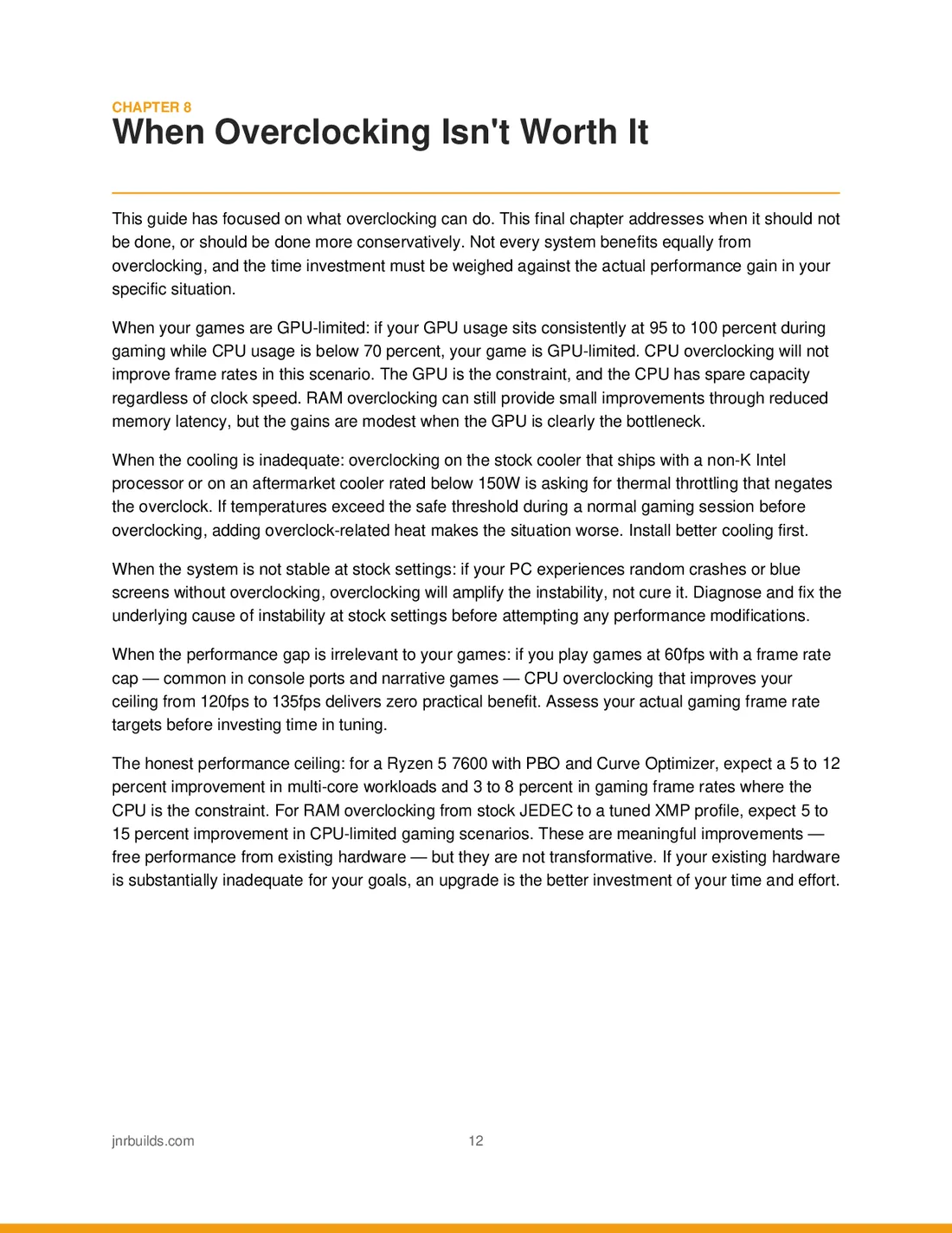
CHAPTER 8
When Overclocking Isn't Worth It
This guide has focused on what overclocking can do. This final chapter addresses when it should not
be done, or should be done more conservatively. Not every system benefits equally from
overclocking, and the time investment must be weighed against the actual performance gain in your
specific situation.
When your games are GPU-limited: if your GPU usage sits consistently at 95 to 100 percent during
gaming while CPU usage is below 70 percent, your game is GPU-limited. CPU overclocking will not
improve frame rates in this scenario. The GPU is the constraint, and the CPU has spare capacity
regardless of clock speed. RAM overclocking can still provide small improvements through reduced
memory latency, but the gains are modest when the GPU is clearly the bottleneck.
When the cooling is inadequate: overclocking on the stock cooler that ships with a non-K Intel
processor or on an aftermarket cooler rated below 150W is asking for thermal throttling that negates
the overclock. If temperatures exceed the safe threshold during a normal gaming session before
overclocking, adding overclock-related heat makes the situation worse. Install better cooling first.
When the system is not stable at stock settings: if your PC experiences random crashes or blue
screens without overclocking, overclocking will amplify the instability, not cure it. Diagnose and fix the
underlying cause of instability at stock settings before attempting any performance modifications.
When the performance gap is irrelevant to your games: if you play games at 60fps with a frame rate
cap — common in console ports and narrative games — CPU overclocking that improves your
ceiling from 120fps to 135fps delivers zero practical benefit. Assess your actual gaming frame rate
targets before investing time in tuning.
The honest performance ceiling: for a Ryzen 5 7600 with PBO and Curve Optimizer, expect a 5 to 12
percent improvement in multi-core workloads and 3 to 8 percent in gaming frame rates where the
CPU is the constraint. For RAM overclocking from stock JEDEC to a tuned XMP profile, expect 5 to
15 percent improvement in CPU-limited gaming scenarios. These are meaningful improvements —
free performance from existing hardware — but they are not transformative. If your existing hardware
is substantially inadequate for your goals, an upgrade is the better investment of your time and effort.
jnrbuilds.com 12

Read page 13 as text
Thank you for reading!
Find more guides, reviews, and build lists at
jnrbuilds.com